Globus Storage Backend
Serving a Globus-backed Origin in Pelican allows you to export data from a Globus Collection into a Pelican federation namespace. This page walks through setup and activation end-to-end, with extra operational details for administrators.
Current Behavior and Limitations
- The Globus backend currently supports exporting one collection per Origin process.
- The full object operation suite is supported, including reads, writes, and listings (subject to your configured namespace capabilities).
Prerequisites
Before configuring Pelican, ensure you have:
- A Globus Collection you can access
1. Collect Required Information from Globus
Collection UUID
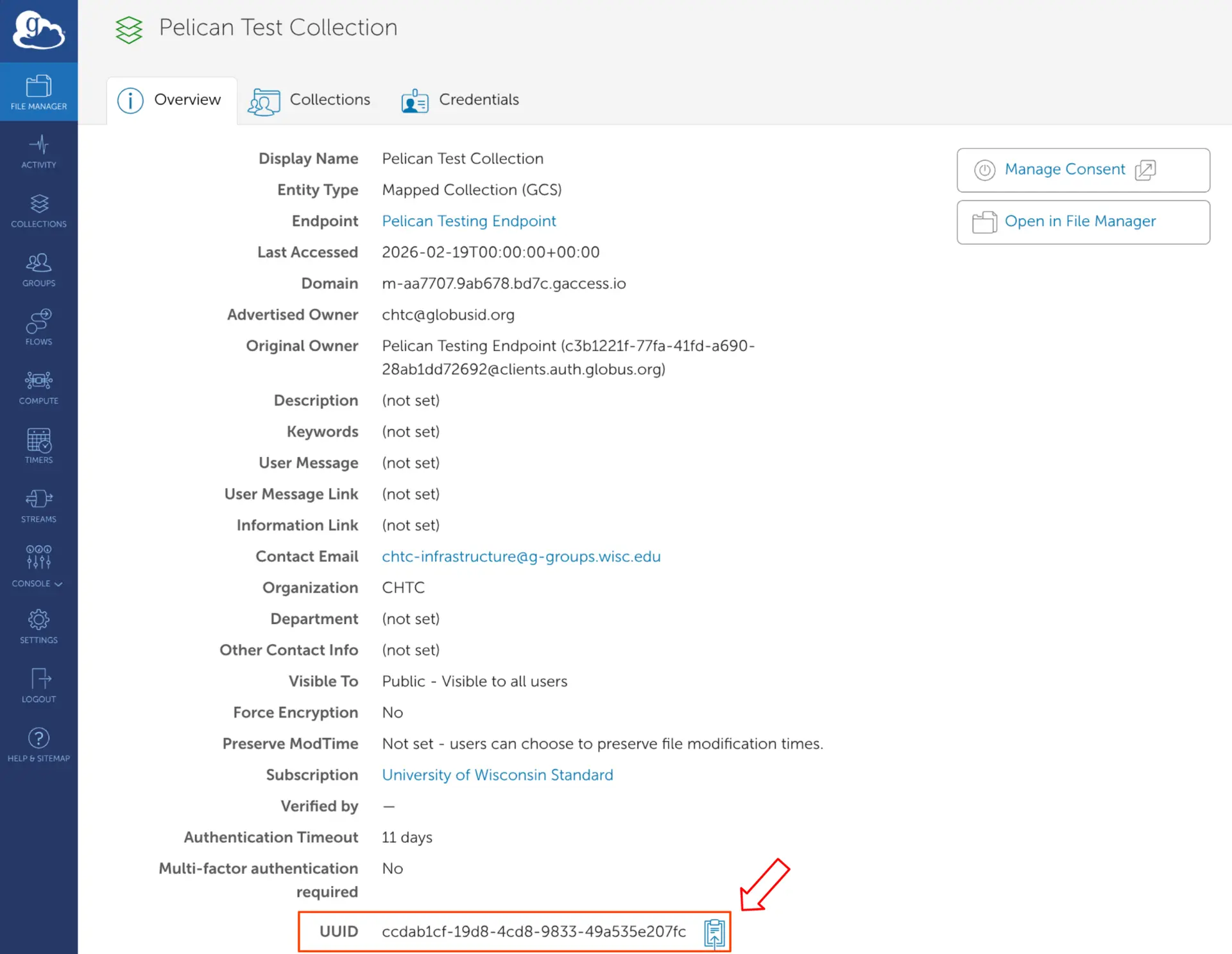
Each Globus Collection has a UUID shown on its Collection overview page.
You will use this value Origin.GlobusCollectionID for single-export config.
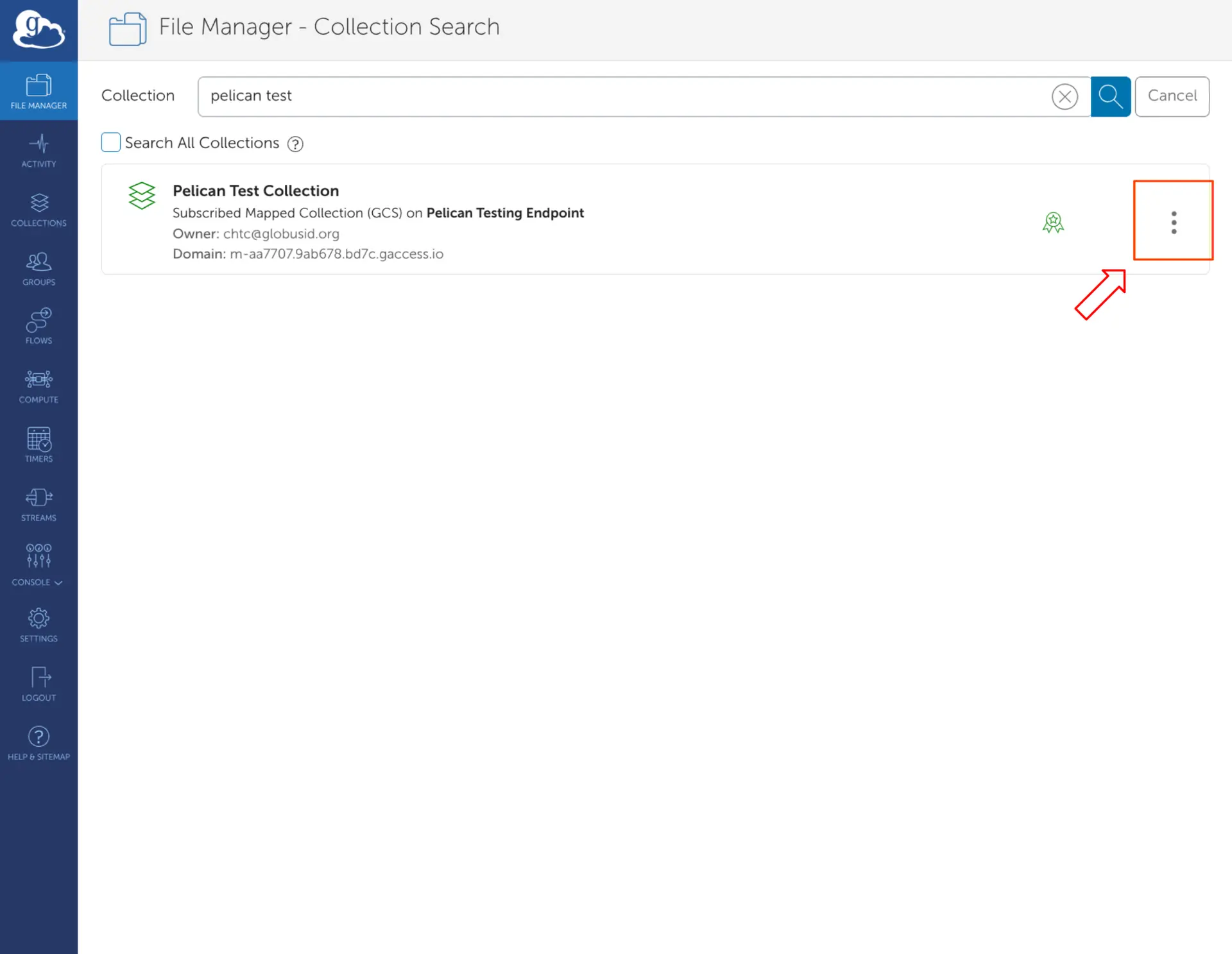
This can be found by going to the “File Manager - Collection Search” tab in the Globus web UI (https://app.globus.org/file-manager/collections ), searching for your collection, and going to the collection overview by clicking on the three dots to the right:
After that, scroll to the bottom of the overview and copy the UUID.
OAuth Client ID and Secret
Register a confidential client in Globus:
- Globus web UI (direct link to confidential client registration):
- Globus developer documentation (step-by-step app registration guide):
When registering the client:
- Choose or create a Globus project
- Use a descriptive application name
- Add a redirect URL matching your Origin web UI callback path.
- If you set URL fields from separate host and port settings, use
https://${Server.Hostname}:${Server.WebPort}/view/origin/globus/callback. - If you set URL fields from one external URL setting, use
https://${Server.ExternalWebUrl}/view/origin/globus/callback. - Relevant Pelican parameters:
- Example:
https://my-osdf-globus-origin:8444/view/origin/globus/callback
- If you set URL fields from separate host and port settings, use
Then:
- Copy the Globus client UUID to a local file
- Create a client secret in Globus and copy the secret to a local file
2. Configure Pelican for Globus
Set Origin.StorageType: "globus" and configure one export with your collection details.
Origin:
  StorageType: "globus"
  GlobusClientIDFile: "/path/to/globus-client-uuid"
  GlobusClientSecretFile: "/path/to/globus-client-secret"

  Exports:
    - StoragePrefix: "/"
      FederationPrefix: "/globus/test"
      GlobusCollectionID: "66429a34-0a52-47b7-8699-d10804a1b75b"
      GlobusCollectionName: "CHTC Projects"
      Capabilities: ["PublicReads", "DirectReads", "Writes", "Listings"]
Notes:
Origin.GlobusClientIDFileandOrigin.GlobusClientSecretFileare the Globus client UUID and the client secret from step 1 respectively- The
StoragePrefixfield must match the path in Globus that you wish to expose via Pelican. For example, setting the field to"/"exposes the root of the collection, whereas setting it to"/foo/bar"limits access to that directory subpath. GlobusCollectionNameis an arbitrary, human-readable label shown in the Pelican Web UI for this export.GlobusCollectionNamedoes not need to match the confidential client application name from step 1.
3. Start the Origin and Activate the Collection
Unlike other backend types, Globus-backed Origins require additional setup through the Web UI because of OAuth2. Serve the Origin using your normal deployment flow before continuing. For startup and admin website initialization guidance, see Serving & Administering Your Origin and Logging in to the Origin’s Admin Page.
Then in the Pelican web UI:
- Open the Origin dashboard.
- Go to Globus exports via the “Globus Configurations” tab on the left side.
- Click Activate for the collection.
- Complete Globus login and consent.
- Return to Pelican and confirm the collection shows as active.
Activation authorizes the Pelican Origin’s client to access the collection on behalf of whoever is doing the setup.
4. Verify Data Access
Note that it may take a few minutes for the Pelican Origin to reboot after activation. After this occurs, test core operations from the exported namespace using a Pelican client:
pelican object get pelican://<federation-hostname>/<federation-prefix>/<object-path> .
pelican object put ./local-file.txt pelican://<federation-hostname>/<federation-prefix>/local-file.txt
pelican object ls pelican://<federation-hostname>/<federation-prefix>/
Operational Details (How It Works)
For operators troubleshooting production setup, this is the backend flow:
- Pelican authenticates the admin through Globus OAuth and stores tokens for collection access.
- Pelican persists token material under
${Origin.GlobusConfigLocation}/tokens. - Pelican configures XRootD with the Globus HTTPS endpoint and token files so backend requests carry proper authorization.
- Pelican keeps access tokens fresh by periodically refreshing via refresh token (currently on an approximately 5 minute interval).
At startup, Pelican also checks whether the collection was previously activated and restores state using persisted data.
OAuth Scope and Callback Notes
During activation, Pelican requests:
- Standard Globus auth scopes
- A collection HTTPS scope:
https://auth.globus.org/scopes/<collection-uuid>/https - A collection data-access scope:
https://auth.globus.org/scopes/<collection-uuid>/data_access - Transfer API scope access for transfer metadata lookups
The callback handler exchanges the authorization code for tokens, then:
- Obtains a transfer token for
transfer.api.globus.orgto query collection endpoint details - Obtains a collection token scoped to the specific collection for data access
- Persists refresh/access token state and token files used by backend reads
Troubleshooting Checklist
- Callback mismatch:
- Ensure the registered Globus redirect exactly matches
https://${Server.Hostname}:${Server.WebPort}/view/origin/globus/callbackorhttps://${Server.ExternalWebUrl}/view/origin/globus/callback.
- Ensure the registered Globus redirect exactly matches
- Inactive collection after restart:
- Verify
Origin.GlobusConfigLocationis writable and persistent enough for runtime tokens.
- Verify
- OAuth credential issues:
- Confirm client ID/secret files are readable by the Pelican process.
- Collection not reachable:
- Re-check the UUID and that the authenticated Globus account can access that collection.
Useful Globus References
- Globus Auth API reference:
- Globus Transfer collection lookup: